High memory usage by Hyper-V virtual machines
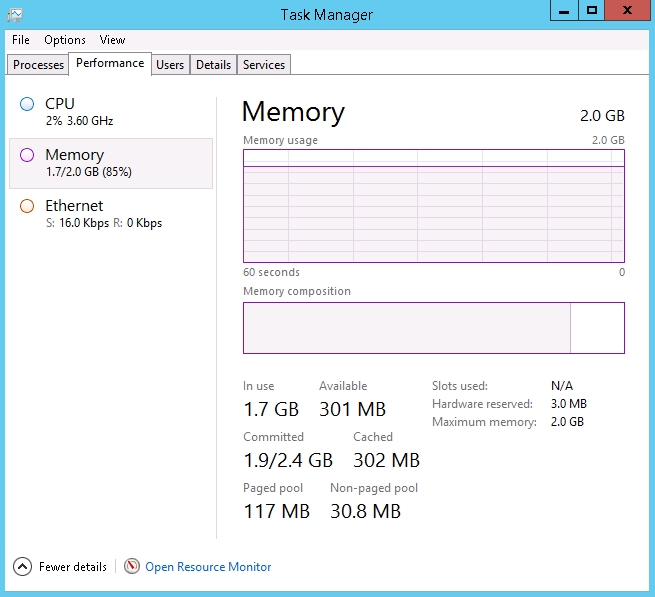
Clients who use WHS plans often ask why a newly installed OS with no software uses 80 to 90 percent of RAM and where this memory is used.
It looks like this:
There are no processes with high memory usage:
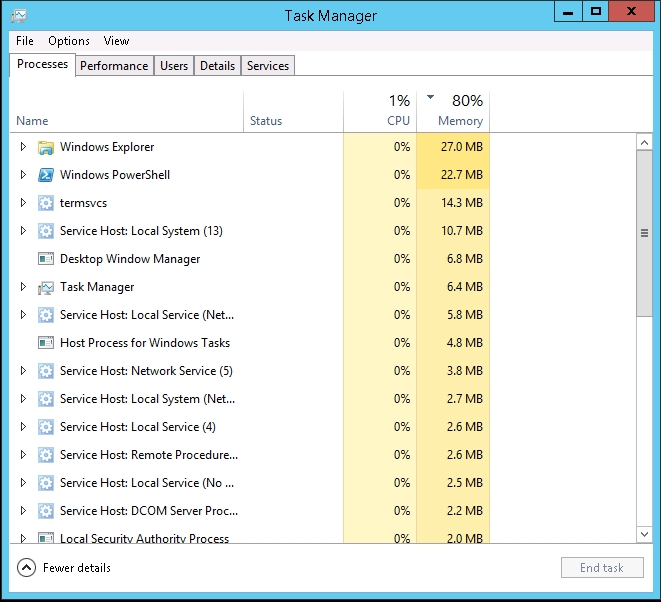
This is a normal behavior. This is how the Hyper-V Dynamic Memory mechanism works.
https://technet.microsoft.com/en-us/library/hh831766.aspx
If the virtual machine requires more RAM, the memory will be allocated automatically.
How can I check that the amount of memory specified in the plan is really provided to the virtual machine?
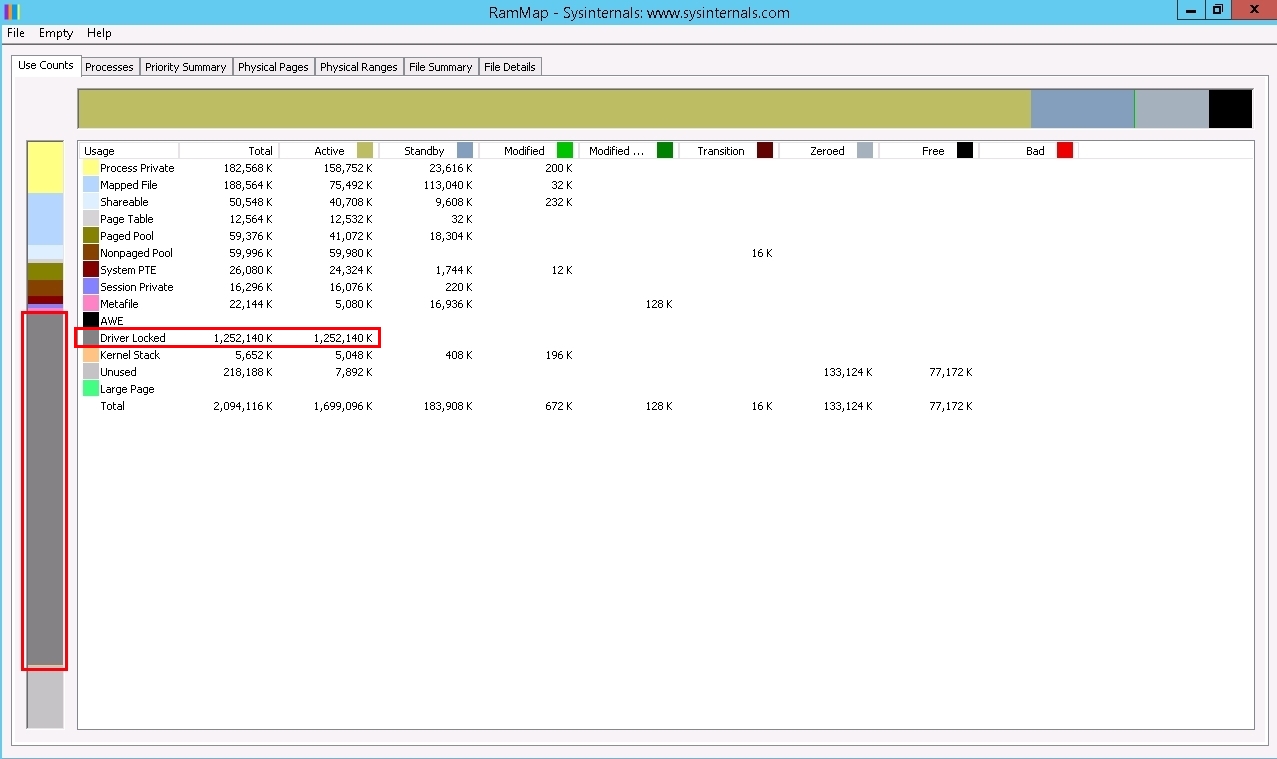
You can download the RamMap utility from Sysinternals. This company belongs to Microsoft and the utility can be considered a recommended official tool:
https://technet.microsoft.com/en-us/sysinternals/rammap.aspx
https://download.sysinternals.com/files/RAMMap.zip
The amount of memory that is reserved by the virtualization system is displayed as Driver Locked:
How can I find out how much memory the server's processes use in total?
You can do this using the following PowerShell command (if buffer forwarding is enabled, you can paste the command into the PowerShell console with a right click of the mouse):
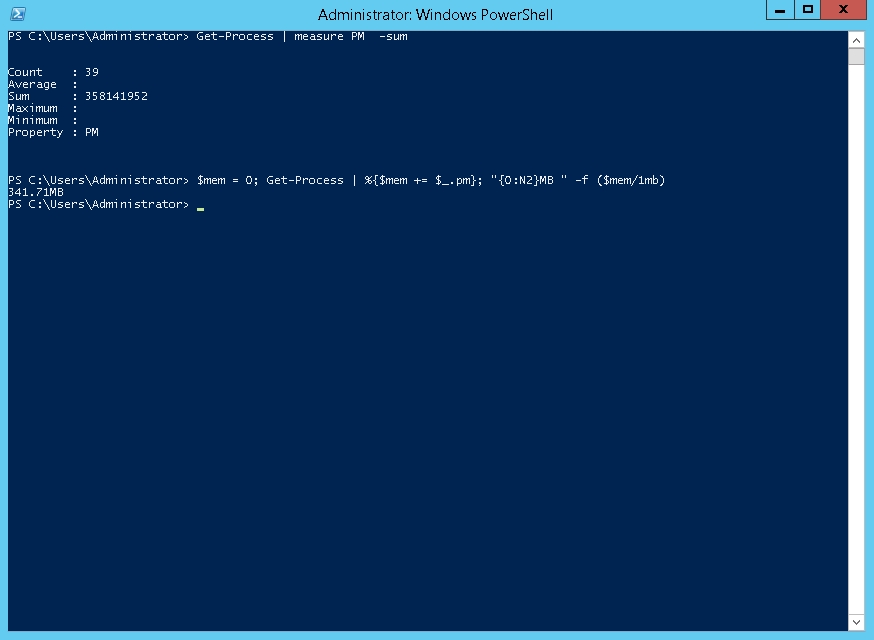
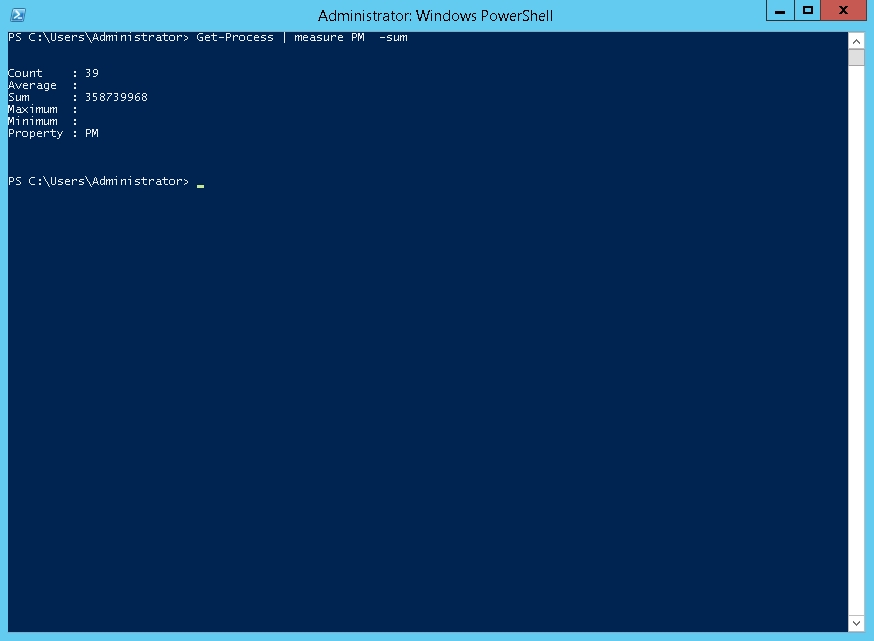
Get-Process | measure PM -sum
You can see that there are 39 running processes, and they use 358,739,968 bytes of RAM, which is approximately 350 MB.
To avoid manual calculations and the risk of an incorrect number of decimal places, you can use the following command:
$mem = 0; Get-Process | %{$mem += $_.pm}; "{0:N2}MB " -f ($mem/1mb)
The result is 340 MB which is consistent with the figure above: